In this chapter, you will learn how to add space outside HTML elements using CSS margins. Margins are useful when you want to create space between elements on a web page. Let’s understand how CSS Margin work step by step.
What is a CSS Margin?
A margin is the space outside an HTML element. For example, imagine two paragraphs placed close to each other. You can use margins to add space between them.
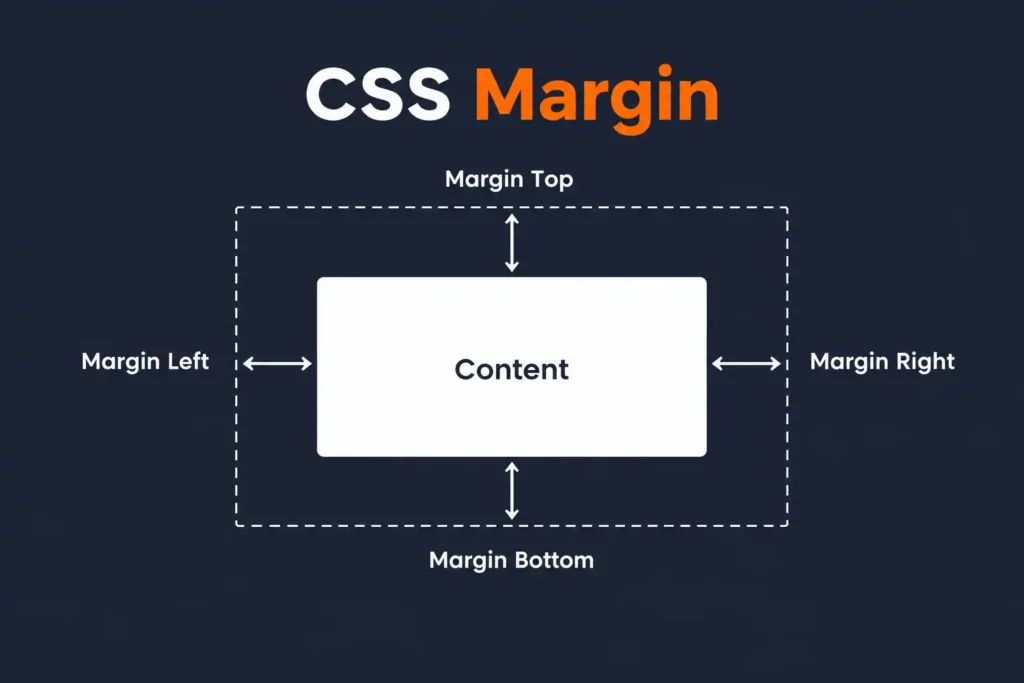
CSS Margin Syntax:
p {
  margin: 20px;
}
This adds 20px of space around the outside of the paragraph.
1. Using the Margin Property
The margin property is used to add space outside an element.
Example
<!DOCTYPE html>
<html>
<head>
  <title>CSS Margin</title>

  <style>
    p {
      background-color: lightblue;
      margin: 30px;
    }
  </style>
</head>

<body>

  <p>This paragraph has a margin of 30px.</p>

  <p>This paragraph also has a margin of 30px.</p>

</body>
</html>
Result
You will see extra space around each paragraph. The margin creates space outside the element, which helps separate elements from each other.
2. Margin on Individual Sides
You can also control the margin for each side separately. CSS provides four properties:
margin-top
margin-right
margin-bottom
margin-left
Example
p {
  margin-top: 20px;
  margin-right: 30px;
  margin-bottom: 20px;
  margin-left: 30px;
}
This gives the paragraph different amounts of space on each side.
Complete Example
<!DOCTYPE html>
<html>
<head>
  <title>Margin on Different Sides</title>

  <style>
    p {
      background-color: lightyellow;
      margin-top: 20px;
      margin-right: 40px;
      margin-bottom: 20px;
      margin-left: 40px;
    }
  </style>
</head>

<body>

  <p>This paragraph has different margins on each side.</p>

</body>
</html>
3. Margin Shorthand Property
Instead of writing four different margin properties, you can use the shorthand margin property.
Four Values
p {
  margin: 10px 20px 30px 40px;
}
The values are applied in this order:
Top → Right → Bottom → LeftSo:
10px→ Top20px→ Right30px→ Bottom40px→ Left
Three Values
p {
  margin: 10px 20px 30px;
}
This means:
10px→ Top20px→ Right and Left30px→ Bottom
Two Values
p {
  margin: 20px 40px;
}
This means:
20px→ Top and Bottom40px→ Right and Left
One Value
p {
  margin: 25px;
}
This adds 25px of margin on all four sides.
4. Using margin: auto
The value auto is commonly used to center an element horizontally. For example:
div {
  width: 300px;
  margin: auto;
}
This works when the element has a width that is smaller than its container.
Complete Example
<!DOCTYPE html>
<html>
<head>
  <title>Center with Margin Auto</title>

  <style>
    div {
      width: 300px;
      background-color: lightblue;
      margin: auto;
      padding: 20px;
    }
  </style>
</head>

<body>

  <div>
    This box is centered horizontally.
  </div>

</body>
</html>
The div will appear in the center of the page horizontally.
Quick Recap
- Margins create space outside an HTML element.
- The
marginproperty adds space on all sides. - You can use
margin-top,margin-right,margin-bottom, andmargin-left. - The shorthand
marginproperty can use one, two, three, or four values. margin: autois commonly used to center an element horizontally.
Mini Quiz
Mini Project
Mini Project: My Weekend Plan
Question:
Create a simple webpage showing your weekend plan. Use CSS margins to create clear space between the different parts of your plan and center the main content on the page.
Requirements
- Add a main heading “My Weekend Plan”.
- Add paragraphs describing three activities you want to do during the weekend.
- Add margin around the paragraphs to create space between them.
- Give one paragraph different margins on the top, right, bottom, and left.
- Use the margin shorthand with two values for another element.
- Create a content box with a width of
300pxand usemargin: autoto center it horizontally. - Use different margin values so the webpage has visible spacing between its sections.
View Answer Code
<!DOCTYPE html>
<html>
<head>
    <title>My Weekend Plan</title>

    <style>
        h1 {
            margin: 30px;
        }

        p {
            margin: 20px;
        }

        .morning {
            margin-top: 10px;
            margin-right: 30px;
            margin-bottom: 20px;
            margin-left: 40px;
        }

        .evening {
            margin: 20px 40px;
        }

        div {
            width: 300px;
            margin: auto;
        }
    </style>
</head>

<body>

    <h1>My Weekend Plan</h1>

    <div>
        <p class="morning">
            I will start my Saturday morning with a relaxing walk.
        </p>

        <p>
            In the afternoon, I will spend some time reading my favorite book.
        </p>

        <p class="evening">
            In the evening, I will watch a movie with my family.
        </p>
    </div>

</body>
</html>
Frequently Asked Questions (FAQs)
Q1. What is a CSS margin?
You can add space outside an element using the CSS margin property. Margins can be applied to all sides or to individual sides of an element.
Q2. How to add margin in CSS?
You can add space outside an element using the CSS margin property. Margins can be applied to all sides or to individual sides of an element.
Q3. What are the four CSS margin properties?
The four individual margin properties are margin-top, margin-right, margin-bottom, and margin-left.
Q4. What is the CSS margin shorthand property?
The margin shorthand property allows you to define margins for multiple sides of an element using one CSS declaration. You can use one, two, three, or four values.
Q5. Can I use different margin values on each side?
Yes. CSS allows you to apply different margin values to the top, right, bottom, and left sides of an HTML element.
Written by Shubhranshu Shekhar, who has trained 20000+ students in coding.